
How to Achieve 144 FPS in Competitive Games like Valorant, CS2 and Overwatch 2 Alright, let’s have a chat. You’re not just clicking heads anymore; you’re stepping into an arena. And in that arena, everything matters. The flick of your wrist, the split-second decision, the way your crosshair glides across the screen. But then it happens—a stutter, a hiccup, a frame freeze at the worst possible moment. You sigh. “If only my game was smoother.”
You’ve heard the buzzwords: “144 FPS,” “high refresh rate,” “buttery smooth.” It sounds like a dream, but I’m here to tell you it’s totally within reach. This isn’t about having the most expensive rig on the block; it’s about working smarter, not harder. It’s about understanding your machine and helping it perform its best.
Think of me as your friendly car mechanic, but for your PC. We’re gonna pop the hood, get our hands a little dirty, and I’ll explain what we’re doing and why, without the confusing jargon. Our mission? To get your games running so smooth and responsive that your only limit is your own skill. Let’s roll up our sleeves.
The “Why” – It’s Not Just a Number, It’s a Feeling
Before we start turning knobs and flipping switches, let’s get on the same page about what we’re actually chasing. Why is 144 FPS the golden ticket?
- It Just Feels Better: This is the simplest way to put it. Moving from 60 FPS to 144 FPS is like upgrading from a dusty old station wagon to a sleek sports car. The steering is tighter, the road feels connected, and every movement is instantaneous and fluid. Enemies peeking corners don’t teleport; they glide, making them infinitely easier to track.
- The Secret Weapon: Input Lag: This is the real reason the pros care. Input lag is the tiny delay between you moving your mouse and that movement appearing on your screen. At 60 FPS, that delay is noticeable. At 144 FPS, it’s cut by more than half. Your actions happen almost the instant you think them. It’s the difference between reacting and predicting. You’re not just seeing more; you’re experiencing the game in a more immediate way.
- The Perfect Pair: FPS and Hz: Here’s a common mix-up. Your PC creates frames (FPS). Your monitor shows them (Hz). If you have a 60Hz monitor, it can only show you 60 pictures per second, even if your PC is creating 200. It’s like having a superstar chef making a five-course meal and serving it on a paper plate. You need the right plate! So, our goal is two-fold: get your PC to consistently cook up at least 144 frames per second, and make sure you have a 144Hz monitor to serve them on.
The Most Important Thing to Remember: A smooth, consistent framerate is better than a high, jumpy one. A locked, unwavering 144 FPS will feel infinitely better than a framerate that spikes from 130 to 200 and back again. Stability is the name of the game. We’re chasing that rock-solid feeling.

The Guts of the Machine – Hardware in Human Terms
You can’t tune a car that’s missing an engine. Hardware is your foundation. For fast-paced games, we prioritize things a little differently.
1. The Brain: CPU (Processor)
For games like Val, CS, and OW, the CPU is the star of the show. It’s less about pretty graphics and more about processing a million tiny calculations every second: where everyone is, what they’re doing, and whether your bullet just hit them in the pinky toe.
- What it does: It’s the quick-thinking strategist.
- What to look for: We want a brain that’s fast, not necessarily one with the most cores. High “clock speed” (measured in GHz) is your friend here.
- Real-World Picks:
- The Amazing All-Rounder: An AMD Ryzen 5 5600X or an Intel Core i5-12400F. These chips are absolute monsters for the price and will easily get you where you need to go.
- The “Money is No Object” Choice: An AMD Ryzen 7 7800X3D. This thing is a gaming cheat code.
- Keep It Cool: A stressed-out brain slows down. Don’t use the dinky cooler that comes in the box. Get a decent aftermarket air cooler. It’s like giving your strategist a quiet, air-conditioned office instead of making them work in a sauna.
2. The Artist: GPU (Graphics Card)
The CPU does the thinking, but the GPU paints the picture. The great news? Because we’re going to turn all the fancy visuals down to low, we don’t need a Picasso. A competent sketch artist will do just fine.
- What it does: It draws what the CPU tells it to.
- Why we can relax: We’re asking it to draw simple, clean pictures, not the Mona Lisa. This takes a huge load off.
- Real-World Picks:
- The 144 FPS Champions: An NVIDIA RTX 3060/4060 or an AMD RX 6600 XT/7600. These cards are perfect for the job at 1080p.
- The “I Want to Be Sure” Option: An NVIDIA RTX 4070. For peace of mind or if you ever want to play at 1440p.
3. The Desk Space: RAM
Think of your RAM as your CPU’s desk. If the desk is too small or cluttered, your brain can’t spread out its work and everything gets slow and messy.
- How Much Desk? 16GB is the absolute smallest desk you can have. 32GB is the sweet spot nowadays. It means your game, Windows, Discord, and that Chrome tab with the map callouts can all sit there comfortably without elbow-fighting.
- How Organized is the Desk? This is “speed” and “timings.” You want fast, well-organized RAM. Look for DDR4 3200MHz or DDR5 6000MHz. And here’s the kicker—you have to tell your computer to use it at that speed! It’s called enabling XMP/EXPO in your BIOS. Out of the box, your fast RAM is often just taking a nap.
4. The Filing Cabinet: Storage (SSD)
This is where you keep all your stuff. A slow hard drive (HDD) means every time the game needs to grab a new sound or texture, it has to rummage through a big, messy filing cabinet. An SSD is a hyper-organized, robotic retrieval system.
- The Non-Negotiable Upgrade: Get an NVMe SSD. It makes your computer start in seconds and your games load before you can even take a sip of your drink. Most importantly, it eliminates those tiny stutters when new things happen on screen.
The Digital Spring Cleaning – Optimizing Windows
Your PC is probably doing a lot of unnecessary stuff in the background. Let’s quiet the noise so your game can be the main event.
- Power Plan: Tell your computer to stop being lazy. Go to Control Panel > Power Options and select High Performance. This stops your CPU from dozing off during a crucial gunfight.
- Startup Apps: Your computer is probably launching a bunch of programs you don’t need the second you turn it on. Go to Task Manager > Startup and disable everything that isn’t essential (OneDrive, Spotify, etc.). Let your PC boot up fast and clean.
- Game Mode: In Windows Settings, make sure this is On. It’s like putting a “Do Not Disturb” sign on your door while you’re gaming.
- The Clean Install: When you update your graphics drivers, always choose Custom Install and check the “Perform a clean installation” box. It’s like getting a fresh start and avoids old files causing problems.
The In-Game Makeover – Less Eye Candy, More Performance
This is where we get the biggest gains. Our mantra: Frames over Fidelity. Every flashy effect is just eye candy that slows you down. We’re here for a focused, clean, and fast experience.
The Universal “Just Do This” List:
- Display Mode: Fullscreen. Not Borderless. Fullscreen gives the game priority and cuts down on lag.
- Resolution: Stick with 1920×1080 (1080p). It’s the competitive standard for a reason.
- V-Sync: OFF. This is a big one. It adds a ton of input lag. We’ll handle screen tearing a smarter way later.
- Limit FPS: OFF (for now). Let’s see what your PC can do first.
- Texture Quality: Medium/High. This one doesn’t usually hurt FPS much and can make things look a bit clearer.
- Shadow Quality: Low. Shadows are performance hogs. Low settings often remove distracting dynamic shadows, which can actually be a competitive advantage.
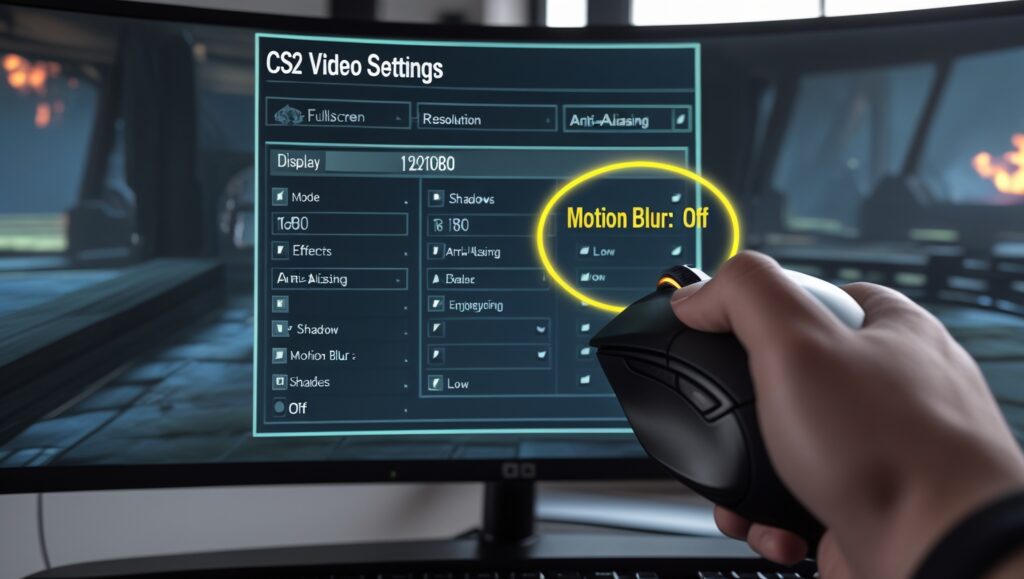
- Everything Else (Effects, Anti-Aliasing, Ambient Occlusion, Motion Blur): LOW or OFF. Especially turn Motion Blur OFF. Why would you want to blur your screen when you need to see clearly? These settings are the main FPS killers.
Game-Specific Nuggets of Wisdom:
- Valorant: Multithreaded Rendering: On. Most other stuff: Low. “Clarity” setting: On. It sharpens the image and helps enemies pop.
- Counter-Strike 2: Don’t be afraid of FSR (FidelityFX Super Resolution). If you need a boost, setting it to “Quality” can give you a huge FPS jump with minimal visual loss.
- Overwatch 2: Render Scale: 100%. Dynamic Render Scale: Off. Reduce Buffering: On. This is a great setting for snappier feeling aim.
The Final Magic Trick – Taming Tearing without the Lag
So you turned V-Sync off to avoid lag, but now the screen might be tearing. Here’s the modern solution:
If you have a monitor with G-SYNC or FreeSync (most do nowadays), you can have the best of both worlds: no tearing and no lag.
- Enable G-SYNC/FreeSync in your NVIDIA/AMD control panel.
- Turn V-Sync ON in the control panel (but leave it OFF in-game). This sounds crazy, but trust me. With the sync tech enabled, this V-Sync acts differently.
- Cap your FPS about 3 frames below your monitor’s max refresh rate (so, 141 FPS for a 144Hz monitor). You can do this in-game if the option is precise, or use the control panel.
This combo is the secret sauce. It keeps everything within your monitor’s sync range, eliminating tearing without adding the nasty input lag of traditional V-Sync. It just feels right.
Wrapping Up: You Got This
Getting to 144 FPS is a journey of a hundred small tweaks, not one magic button. It might take a little testing. Try a change, play a Deathmatch, and see how it feels.
Use a tool like MSI Afterburner to watch your FPS and temperatures in-game. It’s your dashboard, giving you the info you need to see what’s holding you back.
Be patient, be curious, and don’t be afraid to tinker. You’re not just following steps; you’re learning the language of your machine. And when you finally step into that server and everything feels just buttery smooth—when your aim feels connected to your thoughts—you’ll know it was all worth it.
You’ve leveled up your rig. Now go level up your game.
Frequently Asked Questions: Chasing the Perfect Frame Rate
Q1: I have a good GPU, but I’m still not hitting 144 FPS. Why?
This is the most common bottleneck! Games like Valorant, CS2, and Overwatch 2 are often more dependent on your CPU and RAM speed than your graphics card. When you turn all the settings down to Low, you’re essentially taking the load off the GPU and putting it almost entirely on the CPU to calculate all the physics, player positions, and game logic. If your CPU is older or slower, or if your RAM is running at a sluggish speed, it can’t feed instructions to your GPU fast enough, leaving your powerful graphics card waiting around and not being fully utilized. Check your CPU and RAM performance first.
Q2: Is 32GB of RAM really necessary? I thought gaming only needed 16GB.
For most games, 16GB is still perfectly fine. However, for a competitive, high-FPS setup where you want zero compromises, 32GB is becoming the new comfort zone. Here’s why: Windows itself uses a few gigabytes. Discord, a web browser with a few tabs (like for watching streams or checking stats), and the game itself can easily push past 16GB of total usage. When your system runs out of RAM, it starts using your SSD/HDD as “virtual memory,” which is incredibly slow and causes major stutters. 32GB ensures you never, ever have to worry about this. It’s about headroom and stability, not just the bare minimum.
Q3: I enabled XMP/EXPO in my BIOS and my PC wouldn’t boot! What do I do?
Don’t panic! This happens. Your motherboard is basically saying, “Hey, you told me to run this RAM at a fast speed, but I’m not stable at that setting.” First, go back into your BIOS and load the default settings (there’s always a button for this, often F7). This will get you back up and running. The fix is often to manually set the RAM speed one step lower. For example, if you bought a 3600MHz kit, try setting it to 3400MHz instead. You might also need to give the RAM a tiny bit more voltage (this is called DRAM Voltage), but be very careful and only do so after reading a guide for your specific motherboard. If you’re uncomfortable, your RAM’s default speed (usually 2133 or 2666MHz) will work—you’re just leaving some free performance on the table.
Q4: My game feels “stuttery” even though my FPS counter shows a high average. Why?
This is the curse of “frametime inconsistency.” Your average FPS might be 150, but if one frame takes 5ms to render and the next takes 20ms, the game will feel hitchy and unsmooth. The FPS counter averages this out, but your brain feels the pauses. This is often caused by:
- Background processes: Something (like a Windows update, anti-virus scan, or RGB software) is intermittently stealing CPU time.
- Thermal Throttling: Your CPU or GPU is getting too hot and slowing down to cool off, then speeding up again, creating a cycle of stutters.
- Unstable Overclocks: If you’ve overclocked your CPU, GPU, or RAM, an unstable clock can cause momentary crashes that manifest as stutters.
Use a tool like MSI Afterburner to monitor your frametimes (lower and more consistent is better) and your temperatures.
Q5: Should I overclock my CPU and GPU to get more FPS?
This is a classic “it depends.” A mild overclock can indeed give you a nice little FPS boost for free. However, it’s not without risks: it creates more heat, uses more power, and if done incorrectly, can cause system instability (crashes, blue screens). My advice: Focus on optimization first. Dial in all the software and in-game settings from the guide. That will get you 90% of the way there. If you’re still curious about overclocking, start with your GPU using a tool like MSI Afterburner—it’s generally much safer and easier than CPU overclocking. Consider it an optional bonus round, not a necessity.
Q6: G-Sync/FreeSync sounds great, but doesn’t it add input lag?
This is a classic old-school belief that is no longer true with modern implementations. In the past, V-Sync was the only way to eliminate tearing, and it did add significant input lag. G-Sync/FreeSync is a completely different technology. Instead of forcing the GPU to wait for the monitor (which causes lag), it tells the monitor to wait for the GPU. This synchronizes the refresh cycle without the punishing delay. When combined with an FPS cap just below your refresh rate (e.g., 141 FPS on a 144Hz monitor), it provides the smoothest possible, tear-free experience with the lowest possible input lag. It’s the best of all worlds.
Q7: My game is running at 200+ FPS. Is there any benefit to capping it at 144 FPS?
Absolutely, and this is a key pro tip. There are two main benefits to capping your FPS, even if you can go higher:
- Consistency: Your PC isn’t working at 100% load all the time. Capping the frames can prevent those occasional dips or stutters that happen when the action gets really heavy, leading to a more consistent and predictable feeling.
- Heat and Noise: If your GPU is rendering 300 FPS, it’s working much harder and generating more heat than if it’s capped at 144 FPS. This means your fans won’t spin as fast, making your PC quieter and cooler, which is better for the longevity of your components. The input lag difference between 144 FPS and 300 FPS is minuscule (a few milliseconds) compared to the benefit of a rock-solid, cool, and quiet experience.
Q8: I’ve done everything, but I still get network lag (high ping, packet loss). Can FPS fixes help?
Unfortunately, no. FPS (frames per second) and network latency (ping) are two completely different issues. High FPS makes the game look and feel smooth on your end. Network lag is about the connection between your PC and the game server. If you have high ping or packet loss, you’ll see players warping or “rubber-banding,” and your shots might not register, even if your game is running at 500 FPS. To fix network issues, you need to:
- Use a wired Ethernet connection instead of Wi-Fi.
- Make sure no one else on your network is hogging bandwidth (streaming 4K video, downloading large files).
- Connect to game servers that are geographically closer to you.
- Contact your Internet Service Provider if the problem persists.