[wp_code id=”10″]
What is a Frame Rate Test? (And Why You Need One)
Ever wondered why a fast-paced game feels choppy or a video seems unnaturally jumpy? The answer often lies in the frame rate. Simply put, a frame rate test is a check-up for your visual media. It measures how many unique images, or “frames,” your system displays each second (FPS).
For gamers, this FPS test is a vital PC performance benchmark. Is your hardware powerful enough for the latest titles? For video creators, it’s a quality assurance step. Are you recording or playback smooth video at the standard 24fps or buttery 60fps? Understanding your frame rate is the first step to a flawless experience.
How to Use This Frame Rate Test Tool
Quick 3-Step Guide
1. Start Testing
- Click the “Start Test“ button
- Watch your live FPS appear instantly
- The test runs automatically in background
2. Adjust Difficulty
- Use the stress slider to add moving elements
- More elements = harder test for your device
- Watch how your FPS changes in real-time
3. Read Results
- Current FPS: Your live performance number
- Graph: Shows FPS stability over time
- Statistics: Average, max, and min FPS
- Comparison: See which performance tier you’re in
Understanding Your Results
Performance Categories
- excellent: 60+ FPS (Smooth gaming/editing)
- Good: 30-59 FPS (Everyday tasks)
- Basic: Below 30 FPS (Needs optimization)
What to Look For
- High & Stable FPS: Your device is performing well
- Dropping FPS: Device struggles under load
- Low FPS: Time for upgrades or optimizations
Pro Tips
- Close other tabs for accurate results
- Test for 30+ seconds for reliable averages
- Compare different stress levels
- Try on multiple devices
Ready to test? Click “Start Test” and discover your device’s performance in seconds!
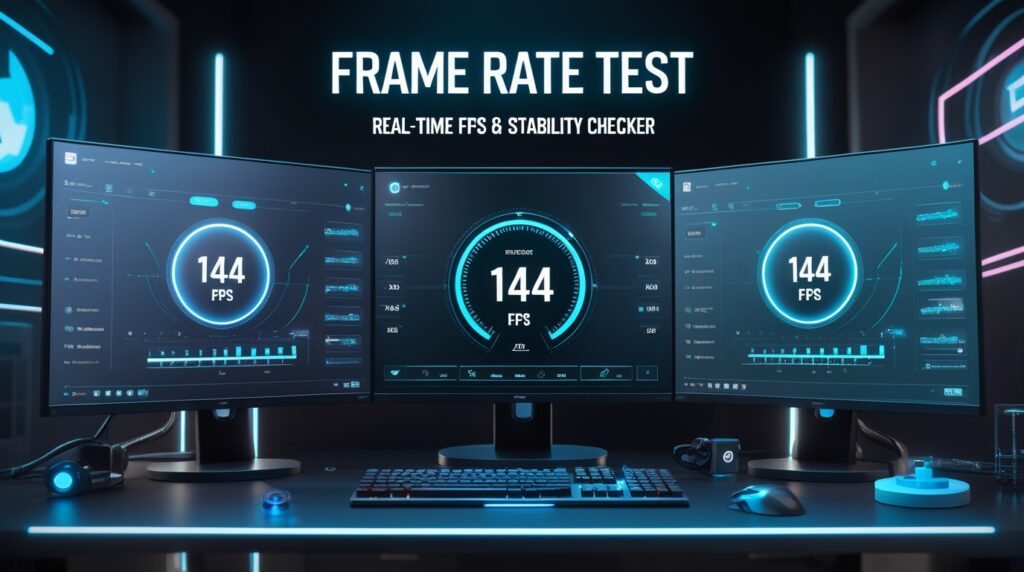
How to Read Your Frame Rate Test Results
So, you’ve run your first frame rate test and a number pops up. What now? Is 30 FPS good? Is 120 FPS overkill? Let’s break down what your FPS results truly mean for your gaming or viewing experience.
Think of it as a smoothness spectrum. At 30 FPS, you have a baseline experience, fine for casual gameplay or cinematic video. Hitting a stable 60 FPS is the gold standard for smooth, fluid action that feels responsive. But for the ultimate competitive edge and silkiness, achieving a high FPS of 120 or even 240 is the goal, provided your gaming monitor has a high refresh rate to match. Understanding this is key to PC performance analysis and knowing whether your system is meeting its potential.
Key Features That Make Testing Easy
Real-Time Performance Monitoring
- Live FPS Counter: Watch your frame rate update instantly as you test
- Performance Graph: See how your FPS changes over time with a clear visual chart
- Smart Statistics: Automatic tracking of your average, highest, and lowest FPS
Interactive Stress Testing
- Adjustable Difficulty: Slide to add more moving elements (from 0 to 2000)
- Visual Feedback: Watch colorful circles move around based on your device’s power
- Performance Meter: Easy-to-understand color bar showing your performance level
FPS Comparison Made Simple
- Side-by-Side Demos: See how different frame rates look with bouncing ball animations
- Smart Categorization: Automatically shows which performance tier you’re in
- Real-World Examples: Understand what each FPS level means for your experience
Why Frame Rate Matters to You
For Everyday Users
- Smoother Browsing: Better FPS means websites feel faster and more responsive
- Longer Battery Life: Efficient devices maintain good FPS while using less power
- Better Video Calls: Higher FPS makes video conversations clearer
For Gamers & Creators
- Gaming Performance: See if your device can handle your favorite games
- Content Creation: Ensure smooth video editing and graphic design
- Streaming Quality: Better FPS means smoother live streams
For Smart Shoppers
Value for Money: Make sure you’re getting the performance you pay for
Test Before You Buy: Check device performance when shopping for new tech
Compare Devices: See how different phones, tablets, or computers perform
How to Perform a Frame Rate Test: 3 Proven Methods
Ready to check your system’s performance? There’s more than one way to run a frame rate test, and the best method depends on your goal. You can do a quick check in your browser, a real-world test inside your favorite game, or a deep dive with advanced software. Let’s explore the three most reliable ways to measure FPS and get the data you need.
Method 1: Using Free Online Tools (The Quick Check)
For a fast, basic online frame rate test, websites like TestUFO are fantastic. These tools primarily test monitor refresh rate to see if your display is running at its advertised 144Hz or 60Hz. It’s a great first step to rule out a simple display setting issue, but remember, this doesn’t measure your performance in games.
Method 2: Using In-Game Benchmarks & Overlays (The Real-World Test)
This is the most practical method for gamers. Most modern games have a built-in in-game FPS counter you can enable in the settings. Alternatively, platforms like Steam have a built-in overlay. This lets you check FPS in real-time while you play, showing you exactly how your system handles intense action. This is crucial for comparing FPS before and after tweaking your game’s graphics settings.
Method 3: Using Professional Software (The Deep Dive)
For those who want detailed data, performance monitoring tools like MSI Afterburner with RivaTuner Statistics Server are the gold standard. These don’t just show your frame rate; they track GPU and CPU usage, temperatures, and frame time data. This helps you identify a CPU or GPU bottleneck, which is essential for making a targeted hardware upgrade decision.
Why Our Tool Stands Out
No Installation Needed
- Works directly in your web browser
- No downloads, no account required
- Completely free to use
Instant Results
- Get your FPS number in seconds
- Real-time updates as you test
- Immediate understanding of your device’s capability
Easy to Understand
- Simple color-coded results
- Clear performance categories
- Visual demonstrations of different FPS levels
Works Everywhere
- Test on phones, tablets, laptops, or desktop computers
- Compatible with all modern browsers
- Responsive design that fits any screen
Perfect For These Situations
Before Buying New Tech
- Test in the store: Check performance before purchasing
- Compare models: See which device performs better
- Validate claims: Make sure you get what you pay for
Troubleshooting Problems
- Identify slowdowns: Pinpoint when performance drops
- Test fixes: See if your solutions actually work
- Monitor changes: Track performance over time
Gaming & Streaming
- Optimize settings: Find the right balance of quality and performance
- Stream with confidence: Ensure smooth broadcasting
- Competitive edge: Maximize your gaming setup
Test All Your Devices
Smartphones & Tablets
- See how your mobile device handles graphics
- Compare different phone models
- Check gaming performance on the go
Laptops & Computers
- Test your work machine’s capabilities
- Compare desktop vs laptop performance
- Ensure your computer meets your needs
Gaming Consoles & TV
- Check performance on smart TVs
- Test gaming console browsers
- Compare different entertainment systems
Learn as You Test
Educational Features
- Live demonstrations: See exactly what different FPS levels look like
- Instant feedback: Understand your results immediately
- Progress tracking: Watch your performance change in real-time
No Technical Knowledge Needed
- Simple language: We explain everything in plain English
- Visual guides: Pictures and animations show you what’s happening
- Instant categorization: We tell you what your results mean
Privacy & Security
Your Privacy Matters
- No data collection: We don’t store your test results
- Local processing: All calculations happen on your device
- No tracking: We don’t follow your online activity
Safe & Secure
- No downloads: Nothing to install, no risk of malware
- Browser-only: Runs entirely in your secure browser environment
- Transparent: Open source code you can inspect
Ready to Test Your Device?
Get Started in Seconds
- Load the tool – Open in any modern web browser
- Click Start – Begin testing immediately
- Adjust settings – Make the test easier or harder
- Get insights – Understand your device’s true capabilities
Share Your Results
- Compare with friends – See how different devices perform
- Tech support helper – Show experts exactly what you’re experiencing
- Purchase research – Make informed buying decisions
Start testing now and discover your device’s true performance potential! No technical skills required – just click and see immediate results that anyone can understand.
Perfect for gamers, streamers, professionals, students, and anyone who wants their technology to work smoothly.
Optimizing Your Frame Rate: From Stutter to Smooth
Now for the fun part: turning those numbers into a buttery-smooth experience. If your frame rate test revealed less-than-ideal results, don’t worry. Optimizing your FPS is often about smart software tweaks, not just buying new hardware. Let’s walk through some proven strategies to boost FPS and eliminate stutters.
Gaming Optimization Checklist
Start here to increase FPS in games. First, always ensure your graphics drivers are up-to-date; this is the simplest and most effective fix. Next, dive into your game’s settings. Lowering demanding options like shadows, anti-aliasing, and ambient occlusion can provide a massive FPS boost with minimal visual impact. Finally, check your Windows power plan and close unnecessary background applications to free up every resource for your game.
Video Playback & Editing Optimization
For creators, smoothness is key in the editing suite. If your timeline is choppy, using proxy files (lower-resolution stand-ins) can be a game-changer. For playback, ensure you’re using a powerful media player like VLC or MPC-HC that can efficiently handle high-frame-rate video. A quick smoothness test during playback will confirm your video performance is where it needs to be.
A quick tip for all: Before you do anything else, restart your system. It’s a simple fix, but it often clears out memory leaks and background tasks that can silently hamper your performance.
Frame Rate Test FAQ: Your Top Questions, Answered
Here, we tackle the most common—and some surprisingly advanced—questions about frame rate testing. Whether you’re a curious beginner or a seasoned tech enthusiast, you’ll find the answers you need below.
Core Concept Questions
1. What exactly is a “good” frame rate?
It depends entirely on the context!
- For Cinematic Viewing: 24 FPS is the standard, as it provides the familiar “movie look.”
- For General Gaming & Video: 60 FPS is the widely accepted standard for smooth, fluid, and responsive visuals.
- For Competitive Gaming: 144 FPS or higher is the goal, as it reduces motion blur and input lag, providing a tangible edge.
- For Virtual Reality: 90 FPS is considered the minimum to prevent motion sickness.
2. What’s the real-world difference between 30, 60, and 144 FPS?
- 30 FPS: Feels passable but noticeably choppy in fast-paced scenes. Controller input can feel slightly delayed.
- 60 FPS: Feels significantly smoother and more responsive. Movements are fluid, and aiming in games feels more precise.
- 144 FPS: Feels incredibly smooth and instantaneous. The image appears to “glide” during motion, and input lag is minimized to the point where it feels like an extension of your will.
3. Is there a difference between FPS and Hz?
Yes, this is a critical distinction!
- FPS (Frames Per Second): This is a software metric. It’s the number of unique frames your PC/console’s GPU is producing each second.
- Hz (Hertz): This is a hardware metric. It’s the number of times your monitor refreshes its image each second.
The Bottom Line: Your experience is capped by the lower of the two numbers. A 300 FPS signal on a 60Hz monitor will only display 60 FPS. They work best when synchronized (see G-Sync/FreeSync below).
Testing & Measurement Questions
4. What’s the most accurate way to test my FPS?
For gaming, using a dedicated tool like MSI Afterburner with RivaTuner Statistics Server is the gold standard. It provides not just an FPS counter but also detailed graphs for 1% lows and frame time consistency, which are more important than the average FPS for a smooth feel.
5. Can a frame rate test damage my monitor or PC?
No. Running a standard FPS test,
whether in a browser or a game, is no more stressful on your components than typical use. Stress-testing tools (like FurMark) are designed to push hardware to its limits and should be used with caution, but standard benchmarking is safe.
6. Why is my FPS high, but the game still feels choppy or stuttery?
This is the classic sign of poor frame pacing. The average FPS might be 60, but if the frames are delivered irregularly (e.g., two frames at once, then a gap), it will feel stuttery. This is why monitoring your 1% low FPS and frame time graph is essential for diagnosing perceived smoothness.
7. What is a “1% Low” FPS and why does it matter?
Your 1% Low FPS represents the frame rate at the worst 1% of moments during your test. It highlights those brief but jarring stutters during intense action. A high average FPS with a very low 1% Low means your experience will be inconsistent. A closer average and 1% low means a consistently smooth experience.
Gaming & Troubleshooting Questions
8. Why does my frame rate suddenly drop in games?
Sudden FPS drops can be caused by:
- Thermal Throttling: Your CPU or GPU is overheating and slowing down to protect itself.
- Background Processes: A scheduled task or update starts running, stealing resources.
- Asset Streaming: The game is loading a new, demanding area from your storage drive.
- Shader Compilation: Especially in new games, the system is compiling shaders on the fly, causing hitches.
9. How can I increase my FPS without spending money?
- Update Your Drivers: Always the first step.
- Optimize In-Game Settings: Lower shadows, reflections, and anti-aliasing.
- Close Background Apps: Web browsers and Discord can consume significant resources.
- Check Your Power Plan: Ensure Windows is set to “High Performance.”
- Resolution Scaling: Slightly lowering your render resolution can provide a huge FPS boost.
10. What is a CPU bottleneck and how do I know if I have one?
A CPU bottleneck occurs when your processor is too slow to prepare frames for your GPU, leaving your powerful graphics card underutilized. You’ll see this if your GPU usage is consistently below, say, 95% while gaming, while one or more of your CPU cores is maxed out. This is a key finding from a detailed gaming performance analysis.
11. Should I cap my frame rate?
Yes, often it’s a good idea.
- Cap at your monitor’s refresh rate: Prevents screen tearing without VRR.
- Cap slightly below your monitor’s refresh rate with G-Sync/FreeSync: Ensures the variable refresh rate technology is always active, providing the smoothest possible experience.
- Cap to avoid overheating: If your system is struggling, a cap can create a more consistent and cooler-running system.
12. What are G-Sync and FreeSync?
These are Variable Refresh Rate (VRR) technologies. They allow your monitor to dynamically match its refresh rate (Hz) to the FPS output of your GPU. This eliminates screen tearing without the input lag penalty of traditional V-Sync and makes any frame rate, even 48 FPS, feel remarkably smooth.
H3: Video & Creation Questions
13. What is the best frame rate for YouTube videos?
YouTube supports a wide range, but the most common and recommended standards are:
- 24fps: For a cinematic, film-like look.
- 30fps: The standard for most vlogs, tutorials, and general content.
- 60fps: For high-action content like gaming, sports, or slow-motion sequences.
14. Why does my video look choppy even though it was recorded at 60 FPS?
This is often due to dropped frames during recording or export. Your software (like OBS) couldn’t encode the frames fast enough, so it simply skipped some, resulting in choppy playback. Always check your recording logs for dropped frames.
Hardware & Mobile Questions
15. Can my monitor limit my FPS?
Yes, but only in terms of what you can see. Your monitor cannot physically display more frames than its refresh rate (e.g., a 60Hz monitor shows a maximum of 60 FPS). However, a higher FPS from your GPU can still reduce input lag, even on a 60Hz monitor.
16. How do I check my FPS on a smartphone?
- Android: Use developer tools or apps like Game Bench or GPU Watch to show an on-screen FPS counter.
- iOS: It’s more restricted, but some games have built-in counters, or you can use guided screen recording in certain situations.
17. I have a 120Hz phone. Why don’t all my apps feel smooth?
Many apps and even parts of the phone’s operating system are locked to 60 FPS to save battery life. The high refresh rate often only activates in supported games, specific apps, or system menus. A mobile refresh rate test can help you see which apps are truly taking advantage of it.