
Is Your CPU Bottlenecking Your GPU? A Simple Guide to Finding Balance You did it. You finally saved up, pulled the trigger, and installed that shiny new graphics card. The box looked powerful, the specs were mind-boggling, and you were ready to crank every single in-game setting to “Ultra,” expecting buttery smooth frames per second (FPS) that would make your eyes water.
But then you boot up your favorite game. The textures are stunning, the shadows are perfect… but the frame rate is… inconsistent. It stutters in big fights. It hitches when you whip the camera around a new, complex area. It just doesn’t feel as smooth as those YouTube benchmarks promised.
A sinking feeling sets in. “Did I get a faulty card?” “Did I install the drivers wrong?”
Before you start the dreaded RMA process or descend into a driver-installation rabbit hole, there’s a very good chance you’re experiencing a classic PC building dilemma: the CPU bottleneck.
This guide is here to demystify that term. We’re going to move beyond the tech-jargon and explain, in simple terms, what a CPU bottleneck is, how to know if it’s happening to you, what you can do about it, and how to avoid it in the future.
Table of Contents

Part 1: The Brain and the Brawn – A Teamwork Analogy
To understand a bottleneck, you first need to understand the different jobs your CPU and GPU do. Let’s use a simple analogy.
Imagine you’re a world-famous artist commissioned to paint a massive mural on a building. You have two key people helping you:
- The CPU (Central Processing Unit) is the Project Manager. This is the brain of the operation. Their job is to make a plan: “Okay, we need to sketch the outline here, mix these specific colors over there, calculate the perspective for that window, and tell the painter exactly which brush to use and where to move next.” They handle all the logic, the instructions, and the behind-the-scenes calculations. They are all about speed and instructions per second.
- The GPU (Graphics Processing Unit) is the Team of Painters. This is the brawn. They are incredibly fast at one specific thing: applying paint to the wall. The bigger and more powerful your team (the more “cores” your GPU has), the faster they can fill in vast areas with stunning detail, complex lighting, and beautiful textures. They are all about throughput and rendering speed.
Now, picture what happens if your Project Manager (CPU) is slow, outdated, or overwhelmed.
They’re frantically trying to figure out the next step, but they can’t keep up. Meanwhile, your elite team of painters (GPU) is standing around, brushes dipped and ready, waiting for instructions. “What do we do next? Where do we go? What color?!” They are idle, their immense potential wasted because the manager can’t feed them work fast enough.
That is a CPU bottleneck. The CPU is limiting the performance of the GPU. The GPU is ready and able to render more frames, but it’s stuck waiting for the CPU to tell it what to render.
Conversely, if you have a lightning-fast Project Manager but only a single apprentice painter, the manager will have instructions ready instantly, but the painter will be overwhelmed trying to paint everything. That would be a GPU bottleneck—which is actually the ideal scenario! It means you’re getting the absolute most out of your graphics card.
Part 2: How to Diagnose a CPU Bottleneck: The Tell-Tale Signs
You don’t always need fancy software to suspect a bottleneck. Your in-game experience can be a huge clue.
The Symptoms You Can Feel:
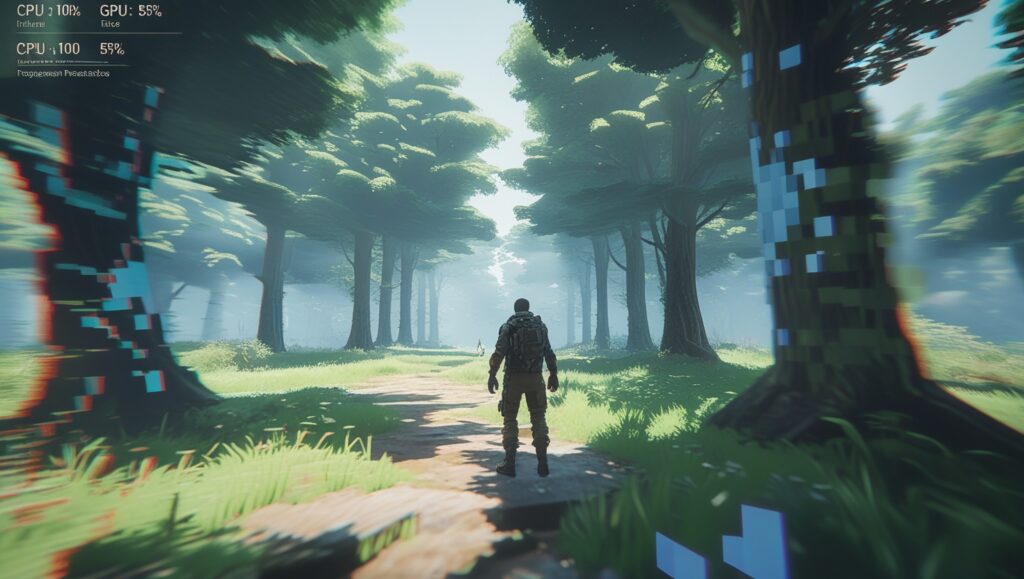
- Low GPU Usage but Low FPS: This is the classic sign. Your game is running at, say, 60 FPS, which feels low for your powerful GPU. You check your performance metrics (using tools we’ll discuss later) and see your GPU usage is only at 50-60%. It’s not being fully utilized. It’s lazy. Meanwhile, your CPU might be hitting 90-100% usage on one or more of its cores.
- Stuttering and Frametime Spikes: The game doesn’t run consistently poorly; it runs inconsistently. It’s mostly okay, but then it hitches or stutters for a split second, often during action-heavy moments. This happens because the CPU gets suddenly overwhelmed with new calculations (explosions, multiple enemies appearing, loading a new area), causing a delay in sending instructions to the GPU. The frame takes longer to prepare, and you feel it as a stutter.
- Poor Performance in CPU-Intensive Games and Scenes: Bottlenecks aren’t universal. They are highly dependent on the game. You might get great FPS in a visually stunning, GPU-heavy game like Cyberpunk 2077 with Ray Tracing on. But then you load up a strategy game like Civilization VI or a large-scale battle in Total War: Warhammer, or a busy player-filled area in an MMO like Final Fantasy XIV, and your performance tanks. These games rely heavily on the CPU to handle AI, complex simulations, and hundreds of individual units—all tasks your Project Manager must handle.
- Raising Graphics Settings Doesn’t Hurt (or Even Helps) FPS: This one seems counterintuitive. If you lower your resolution from 1440p to 1080p and your FPS doesn’t increase much, that’s a giant red flag for a CPU bottleneck. Why? Because lowering the resolution primarily reduces the workload for the GPU (the painters have less detailed wall to cover). But if the FPS doesn’t go up, it means they were already waiting around. The bottleneck was never their painting speed; it was the manager’s instruction speed. In some extreme cases, cranking up GPU-heavy settings like resolution or shadows can even smooth out performance by giving the GPU more to do while it’s waiting for the CPU, making the frametimes more consistent.
Confirming It: The Tools You Need
Suspicion is one thing; data is another. Thankfully, it’s easy to monitor your system.
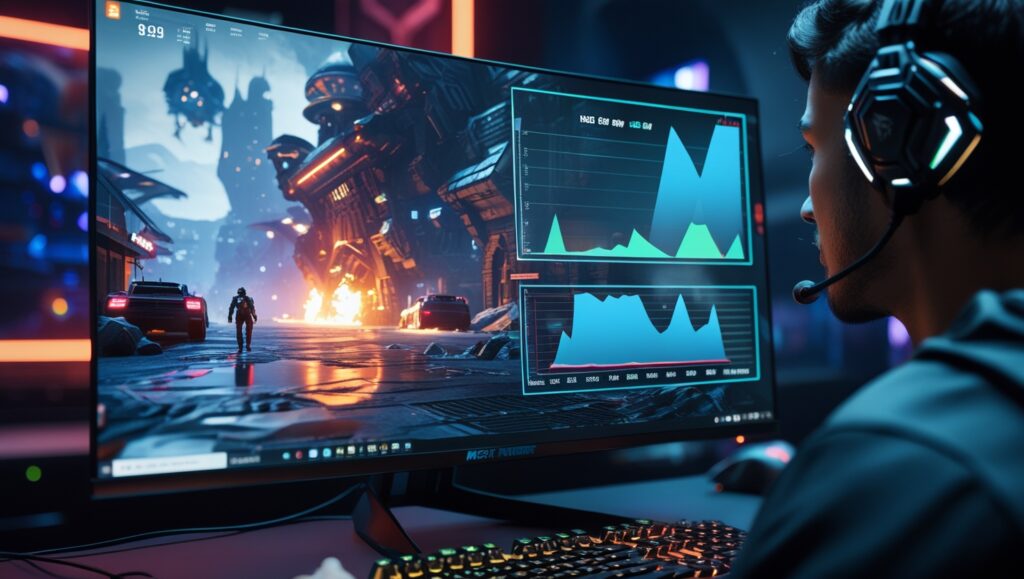
- MSI Afterburner with RivaTuner Statistics Server (RTSS): This is the gold standard, and it’s free. Once installed and configured, you can have an on-screen display (OSD) showing you crucial metrics in real-time while you game.
- What to monitor: CPU Usage (%) (per core is even better), GPU Usage (%), CPU Temperature, GPU Temperature, and Framerate (FPS).
- The Diagnosis: If you see your GPU usage consistently below 95-99% in a demanding game while one or more of your CPU cores are pinned at 95-100% usage, you have a CPU bottleneck. The GPU is waiting in line for work.
- Windows Task Manager (Quick and Dirty): Simpler, but less detailed. Press
Ctrl+Shift+Escwhile gaming (use Windowed or Borderless Fullscreen mode). Click on the “Performance” tab. Look at your CPU graph and GPU graph. If the CPU is maxed out and the GPU is not, you’ve found your culprit.
Part 3: The Deeper Dive: Why Bottlenecks Happen
It’s not just about having an “old” CPU. Several factors contribute to this imbalance.
- Game Engine Design: Different games stress components differently. Competitive esports titles like CS:GO, Valorant, Rainbow Six Siege, and Fortnite (on performance modes) are designed to run at extremely high frame rates (200+ FPS). To achieve this, they often lower the graphical load on the GPU and instead place a massive demand on the CPU to process game logic, player positions, and physics at lightning speed. These games are famously CPU-hungry.
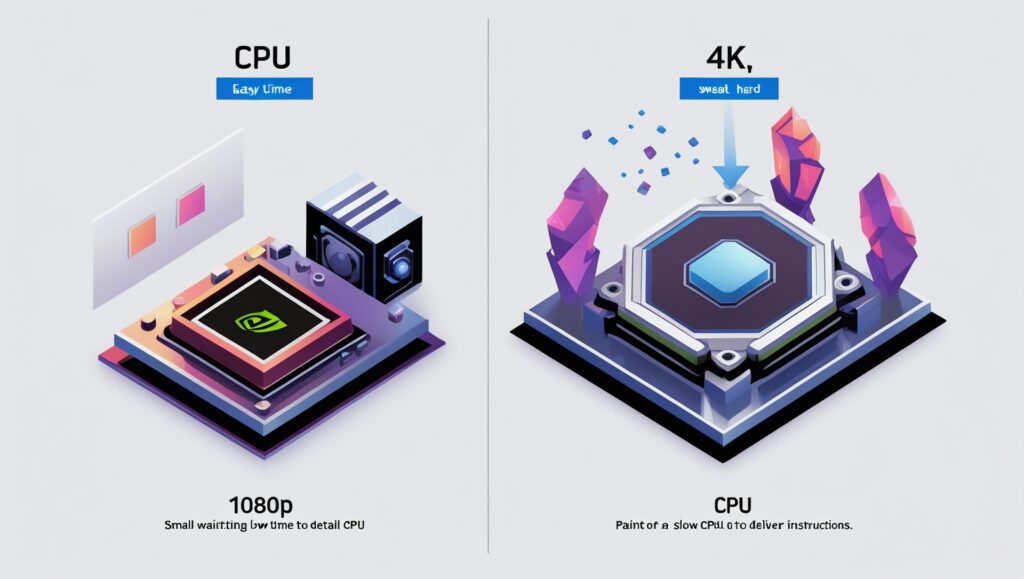
- Resolution is Key: This is a critical concept. At lower resolutions (like 1080p), the GPU’s job is relatively easy. It can render frames so quickly that it often ends up waiting for the CPU. This makes CPU bottlenecks more apparent at 1080p. At higher resolutions (like 4K), the GPU’s job becomes monumentally harder. It takes much longer to render each detailed frame. In this case, the CPU has plenty of time to prepare the next set of instructions while the GPU is working. This is why high-resolution gaming is often more GPU-bound.
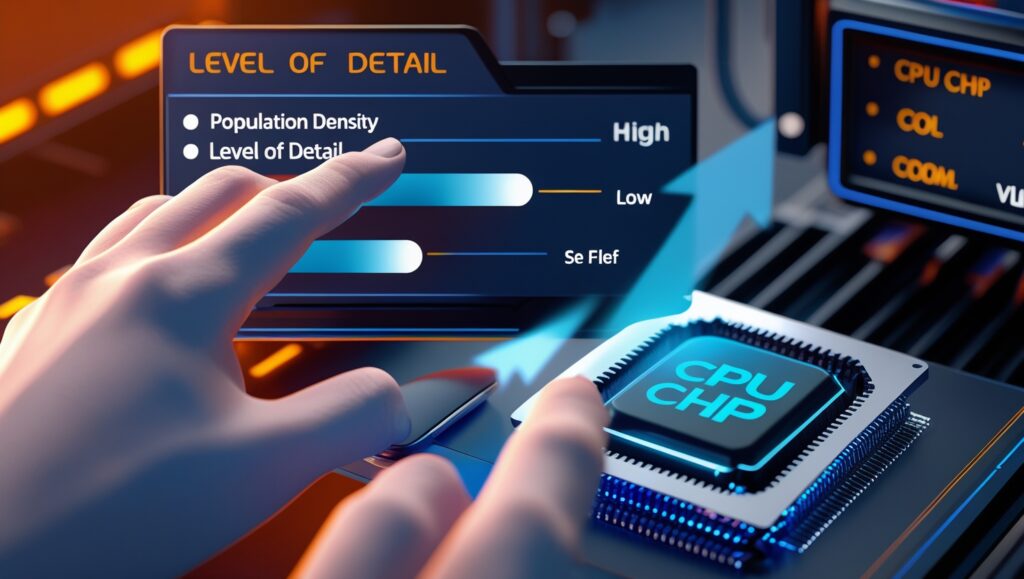
- In-Game Settings: Certain settings affect the CPU more than others. While textures and resolution are mostly GPU-bound, settings that increase the number of objects or characters on screen (like Population Density, Draw Distance, Level of Detail) will ask more of the CPU. Similarly, physics simulations can be very CPU-heavy.
- The Raw Architecture: An older CPU might have a lower clock speed, fewer cores, and, most importantly, a much older architecture. IPC (Instructions Per Cycle) is a crucial metric—it’s how much work a CPU can do with each clock cycle. A modern CPU with a high IPC can vastly outperform an older CPU with the same number of cores and a similar clock speed. A 4-core CPU from 2014 is not the same as a 4-core CPU from 2023.
Part 4: “I Have a Bottleneck! What Can I Do?” – Practical Solutions
Don’t despair! A bottleneck isn’t a death sentence for your PC. There are several things you can try before resorting to opening your wallet.
Software and Settings Fixes (Free and Easy)
- Update Your Drivers: It sounds basic, but it’s always step one. Ensure you have the latest GPU drivers from NVIDIA or AMD. Also, check your motherboard manufacturer’s website for chipset drivers for your CPU. These can include important performance optimizations.
- Background Process Triage: Your CPU is the Project Manager. If it’s also busy running 50 Chrome tabs, Discord, Spotify, and various other utilities in the background, it has less time and focus to dedicate to your game. Before launching a game, close unnecessary applications. You can use Task Manager to see what’s using your CPU and disable unnecessary startup programs.
- In-Game Settings Optimization: This is your most powerful tool.
- Increase GPU-Bound Settings: Sounds crazy, but try increasing your resolution (use Dynamic Super Resolution / Virtual Super Resolution if you don’t have a high-res monitor) or cranking up GPU-heavy settings like textures, shadows, and anti-aliasing. This gives your GPU more work to do in the time it’s waiting for the CPU, which can sometimes lead to a smoother and more consistent feel, even if the average FPS doesn’t change much.
- Decrease CPU-Bound Settings: Look for settings like Draw Distance, Level of Detail, Character Model Quality, Population Density, and Physics. Lowering these reduces the CPU’s workload, potentially freeing it up to deliver more instructions to the GPU and boost your FPS.
- Check Your Power Plan: In Windows, search for “Choose a power plan” and make sure you’re on High Performance or Ultimate Performance. This ensures your CPU is allowed to run at its maximum speed consistently, rather than trying to save power and downclocking during a game.
Hardware Solutions (The Investment)
If the software tweaks aren’t enough, the bottleneck might be severe enough to warrant a hardware change.
- Overclocking Your CPU: If you have an unlocked CPU (denoted by a “K” for Intel or “X” for AMD) and a compatible motherboard, you can manually increase its clock speed. This makes your Project Manager work faster. WARNING: This generates more heat and requires adequate cooling. Do your research and proceed cautiously.
- Enable XMP/DOCP in BIOS: This is non-negotiable and often overlooked. Your RAM likely runs at a lower speed by default. Enabling the Extreme Memory Profile (XMP) or Direct Overclock Profile (DOCP) in your motherboard’s BIOS makes your RAM run at its advertised speed. Since the CPU constantly talks to the RAM, faster RAM means the CPU can get its data quicker, reducing wait times and alleviating a minor bottleneck. This is one of the easiest performance boosts available.
- Upgrade Your CPU: This is the definitive solution. You’re hiring a new, faster Project Manager. However, this often isn’t as simple as just swapping the chip.
- Socket Compatibility: CPUs fit into specific motherboard sockets. An Intel LGA 1700 socket won’t fit an AMD AM5 CPU, and it might not fit an older Intel CPU either. You must check compatibility.
- The Platform Upgrade: Often, upgrading a CPU that’s more than a few generations old requires a new motherboard and likely new RAM (e.g., moving from DDR4 to DDR5). This becomes a significant upgrade, almost a new PC build.
Part 5: Planning for the Future: How to Avoid Bottlenecks When Building
The best cure is prevention. When building or buying a new PC, a little planning goes a long way.
- Strive for Balance: The goal isn’t to buy the absolute best CPU and the absolute best GPU. The goal is to buy a CPU and GPU that are well-matched and will work efficiently together for your specific purpose. A Ryzen 5 7600 and an RTX 4070 is a fantastic, balanced pairing for 1440p gaming. Pairing an RTX 4090 with a Core i3-10100, however, would be a catastrophic bottleneck.
- Research Your Primary Use Case: Are you a competitive esports gamer aiming for 300+ FPS at 1080p? Then you should prioritize a very strong, modern CPU (like an Intel i7 or i9, or an AMD Ryzen 7 or 9). Are you a single-player, eye-candy enthusiast who wants to game at 4K? Then your budget should lean much more heavily towards the most powerful GPU you can afford, as the workload there is overwhelmingly GPU-bound.
- Use the Bottleneck Calculators (With a HUGE Grain of Salt): There are online “bottleneck calculator” tools. They can give you a very rough, ballpark idea of potential pairing issues. Do not take their percentage results as gospel. They cannot account for resolution, specific games, or background tasks. Use them as a starting point for your own research, not as a definitive answer.
- Watch and Read Real-World Benchmarks: This is the most important step. Before you buy, search for reviews and benchmarks for the exact CPU and GPU pair you’re considering. Look for videos or articles that show performance in the games you play at the resolution you use. This real-world data is infinitely more valuable than any theoretical calculator.
Conclusion: The Perfect Bottleneck
It’s important to remember that a bottleneck is not a flaw; it’s a fundamental characteristic of any system. There will always be a limiting factor. In an ideal world, that limiting factor should be your GPU.
If your GPU is running at 99% usage while your CPU is humming along at a comfortable 70-80%, congratulations! You have a perfectly balanced system. You are getting every single frame of performance you paid for out of your graphics card. You are fully utilizing your hardware.
So, is your CPU bottlenecking your GPU? Use the tools and knowledge in this guide to find out. Don’t panic if it is. See it as a puzzle to solve. Tweak your settings, clean up your system, and understand the relationship between the brain and the brawn of your PC. With a little effort, you can squeeze the best possible performance out of your machine and get back to enjoying your games, stutter-free.
FAQs
Q1: The article uses an analogy of a Project Manager (CPU) and Painters (GPU). Does this mean a CPU with more cores is always a better manager?
- Not necessarily. The quality of the “manager” isn’t just about the number of employees (cores); it’s about their individual skill and efficiency. This is measured by IPC (Instructions Per Cycle). A modern 6-core CPU with high IPC can often outperform an older 8-core CPU with lower IPC because each core is fundamentally faster and smarter. The game’s design also matters. Some older games are programmed to only use one or two cores efficiently, so having many cores won’t help. The ideal is a CPU with a strong combination of good IPC, high clock speeds, and an appropriate number of cores for your tasks.
Q2: I checked my usage, and my GPU is at 99% while my CPU is also very high (around 80-90%). Is this a bottleneck?
- This is actually a sign of a very well-balanced system under heavy load. Both components are working near their maximum capacity to deliver performance. This is ideal. A true, problematic CPU bottleneck is indicated when the CPU (or several of its cores) is at or near 100% utilization while the GPU usage is significantly lower (e.g., 70% or less) and cannot be fully engaged, resulting in lower FPS than expected.
Q3: I’m experiencing a CPU bottleneck. Besides upgrading, you mentioned increasing graphics settings. Why would making the GPU work harder potentially improve performance?
- This is a counterintuitive but important concept. It’s about smoothing out frametimes (the time between each frame). If the GPU is finishing its work very quickly at low settings and then waiting for the CPU, the delivery of frames can be uneven, causing stutters.
- Scenario: At Low settings, the CPU struggles to prepare 150 frames per second. The GPU renders each of those frames almost instantly and then sits idle, waiting. This leads to inconsistent delivery.
- The Fix: By increasing settings to Ultra or raising the resolution, you increase the amount of time the GPU spends rendering each frame. Now, the CPU still prepares 150 frames per second, but the GPU takes longer to paint each one. This often results in a similar or slightly lower average FPS, but the workload between the two components is better balanced. The GPU is no longer sitting idle, and the frames are delivered more consistently, which can feel smoother and eliminate stutters, even if the FPS counter doesn’t go up.
Q4: How significant is RAM speed in preventing or causing a CPU bottleneck?
- Extremely significant. Think of RAM as the Project Manager’s (CPU’s) filing cabinet. All the data the CPU needs—game assets, instructions, etc.—is stored in RAM. If the filing cabinet (RAM) is slow and disorganized, the manager spends valuable time waiting for files instead of working.
- Enabling XMP/DOCP: Most RAM is sold at speeds higher than the default JEDEC standard (e.g., 3200MHz, 3600MHz). If you don’t enable the Extreme Memory Profile in your BIOS, your RAM will run at a much slower speed (often 2133MHz or 2400MHz). This cripples your CPU’s performance. Enabling XMP is one of the simplest and most effective free performance boosts you can get, especially in CPU-bound scenarios.
- Capacity and Latency: Having enough RAM (16GB is the current sweet spot for gaming, 32GB for heavy multitasking) is also crucial. Running out of RAM forces the system to use the much slower storage drive as memory, causing massive stutters. Lower latency (CL timings) also helps, though its impact is generally less than outright speed.
Q5: I have a high-end GPU (e.g., an RTX 4080/4090 or RX 7900 XTX) but a mid-range CPU. The article says 4K is more GPU-bound. Should I just game at 4K to avoid the bottleneck?
- Yes, this is a very common and effective strategy. At 4K resolution, the workload shifts overwhelmingly to the GPU. The GPU takes so long to render each demanding frame that even a mid-range CPU has plenty of time to keep up with instructions. By gaming at 4K, you are essentially maximizing the utilization of your powerful GPU and minimizing the impact of the CPU bottleneck. However, if you ever play competitive esports titles where you lower the resolution to achieve very high FPS, the CPU bottleneck will become apparent again.
Q6: Are bottleneck calculators found online accurate and reliable?
- No, they should be used with extreme skepticism. These calculators use simplistic, theoretical models based on aggregate performance data. They cannot account for the critical variables that determine a real-world bottleneck:
- Specific Game: One game might be heavily CPU-dependent (e.g., Microsoft Flight Simulator), while another is mostly GPU-dependent (e.g., Cyberpunk 2077 with Path Tracing).
- Resolution and Settings: As discussed, the bottleneck changes dramatically between 1080p and 4K.
- Background Processes: What else is running on your system?
- Engine Optimizations: How well the game code utilizes CPU cores.
They can give a vague, ballpark idea of a severe mismatch (e.g., pairing a decade-old CPU with a modern flagship GPU), but for any nuanced pairing, they are largely useless. Rely on real-world benchmark videos and articles instead.
Q7: If I upgrade my CPU to eliminate a bottleneck, will I need to upgrade anything else?
- Very likely, yes. This is often called a “platform upgrade.” You must check:
- Motherboard Socket Compatibility: CPUs require specific sockets (e.g., AM5 for Ryzen 7000, LGA 1700 for Intel 12th/13th gen). A new CPU will likely require a new motherboard.
- RAM Compatibility: A new motherboard platform may require a new generation of RAM (e.g., moving from DDR4 to DDR5).
- Cooling: A newer, more powerful CPU may generate more heat and require a better CPU cooler than your previous one.
- Power Supply (PSU): While the CPU itself might not draw massively more power, a full system upgrade could push your total power draw up. Ensure your PSU has enough wattage and the proper power connectors (e.g., the new 12+4pin connector for high-end GPUs).
Q8: Beyond gaming, what other tasks are particularly sensitive to CPU bottlenecks?
- Any task that is heavily dependent on serial processing (fast single-core speed) or parallel processing (multiple cores) can be bottlenecked by a slow CPU. This includes:
- Video Editing and Encoding: Rendering and exporting videos, especially with complex effects.
- 3D Rendering and CAD Software: Calculating complex models and scenes.
- Software Compilation: Translating code into applications.
- Running Virtual Machines: Emulating entire operating systems.
- Heavy Multitasking: Running many demanding applications at once (e.g., gaming while streaming and having browser tabs open).
Q9: My CPU is bottlenecking my GPU in one specific game, but not others. Is my hardware faulty?
- No, this is completely normal and confirms that your hardware is functioning correctly. It simply highlights that different games have different demands. The game where you see the bottleneck is likely a title that is notoriously CPU-intensive (like a strategy game, a massive open-world game, or a physics-heavy simulation). This is why it’s crucial to test and monitor performance in the specific games you play most often.
Q10: Is there any scenario where a slight CPU bottleneck isn’t a bad thing?
- Absolutely. If you are using a variable refresh rate technology like G-Sync or FreeSync, your goal is a smooth, tear-free experience within your monitor’s refresh rate range (e.g., 60-144Hz). If your CPU is limiting your GPU to a very stable 100 FPS on a 144Hz monitor, you are still getting an excellent, smooth experience and fully utilizing the adaptive sync technology. The “problem” is only if the bottleneck is causing noticeable stutters, hitching, or performance that is significantly lower than your expectations and monitor’s capabilities.